
Top 5 Tools to Find the Biggest Files / Folders on macOS

Before you start randomly deleting files or buying external storage, you need to know what's actually eating up your space. Because there may be just a couple files that take up most of the space. How do you find those files and folders? Well, that's a question I asked myself multiple times and after trying out multiple tools I have created a list of their pro's and con's.
1. ncdu - The (free) Terminal Tool
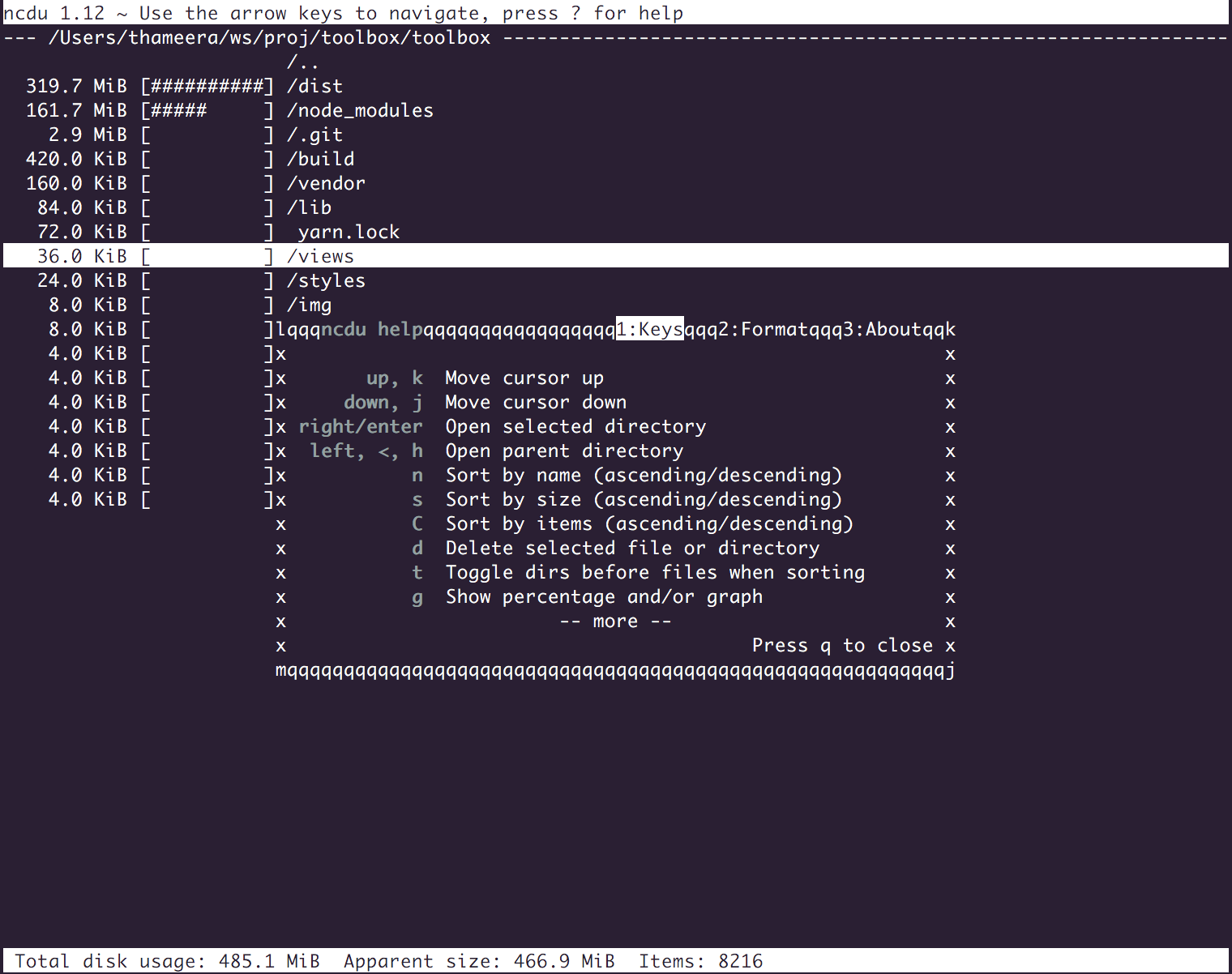
For those comfortable with the command line, ncdu (NCurses Disk Usage) is a fantastic free option. Install it via Homebrew with a simple brew install ncdu.
Pros:
- Completely free
- Fast and lightweight
- Works over SSH for remote servers
- Keyboard navigation is efficient once learned
Cons:
- Terminal-only interface
- Requires Homebrew installation
- Learning curve for non-technical users
Usage:
# Scan current directory
ncdu

# Scan specific directory
ncdu /Users/yourname/Documents

# Exclude certain directories (e.g. node_modules and .git)
ncdu --exclude .git --exclude node_modules
2. DaisyDisk - The (paid) Visual Approach
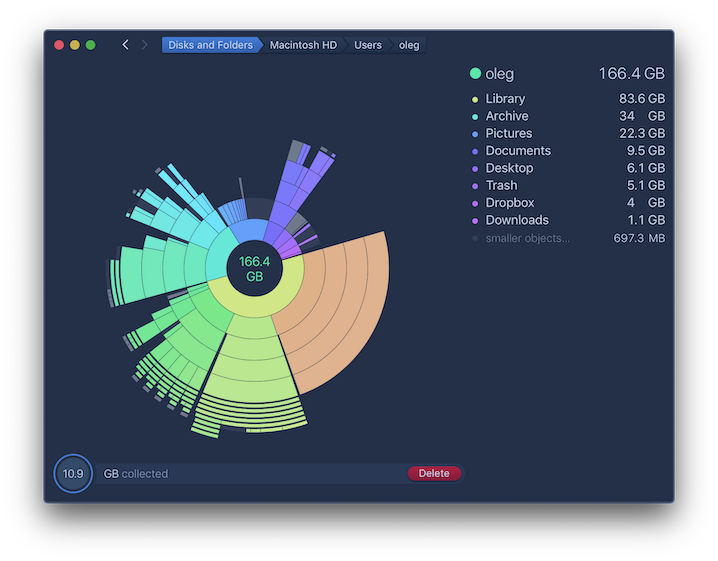
DaisyDisk isn't free ($9.99 one time purchase) but offers an intuitive interface, which may help if you're not very tech-savvy. It scans your drive and presents the results as an interactive chart where you can drill down into folders with simple clicks.
Pros:
- Beautiful, interactive visualization
- Direct deletion from within the app
- Shows hidden space used by system files
Cons:
- Paid app (though it's a lifetime license for 5 personal macs)
- Requires Full Disk Access permission
- Can be overwhelming with very large drives
3. GrandPerspective - The Free Visual Alternative
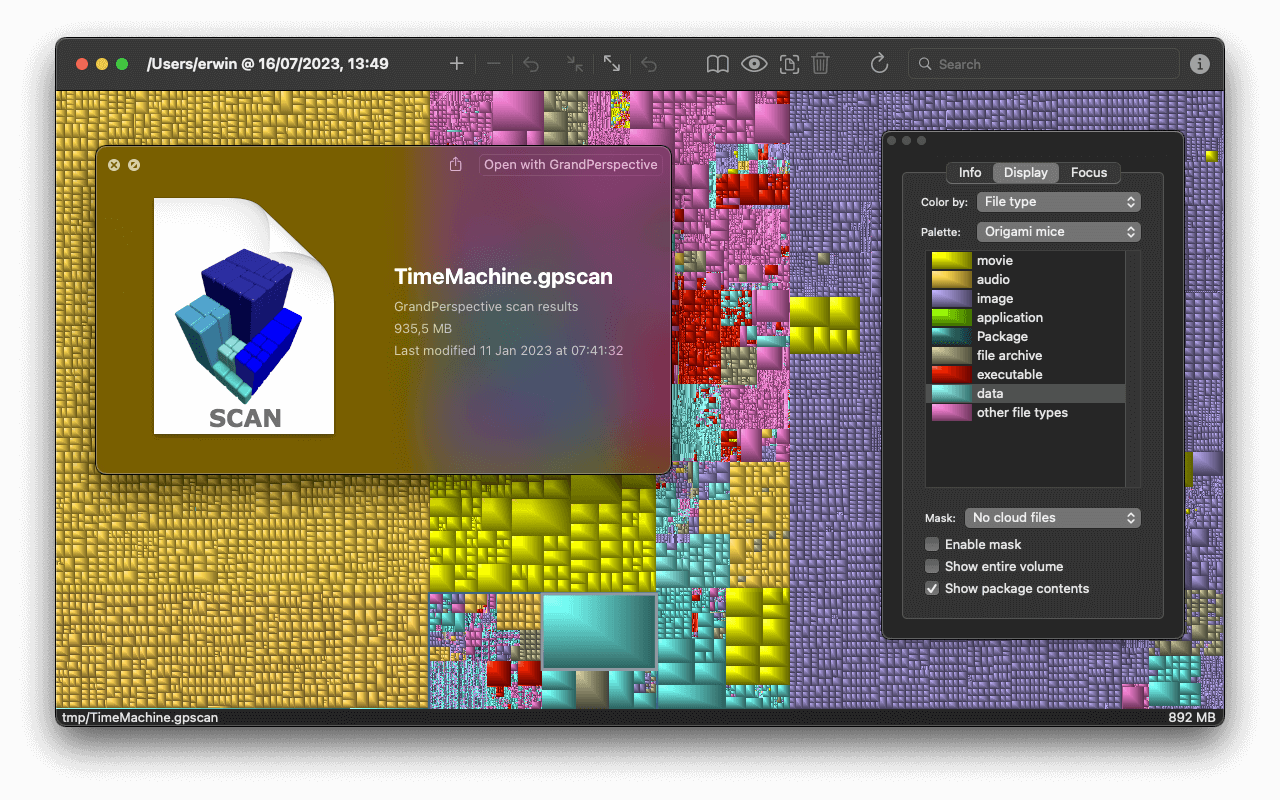
GrandPerspective is the open-source answer to DaisyDisk. It uses a treemap visualization where file sizes are represented by rectangles.
Pros:
- Completely free and open source
- Lightweight application
- Multiple color schemes for different file types
Cons:
- Less polished interface than DaisyDisk
- Treemap can be harder to read than DaisyDisk's charts
- Can't delete files directly from the app
- If you want to install it through the App Store, it still costs money.
5. OmniDiskSweeper - The Simple Solution
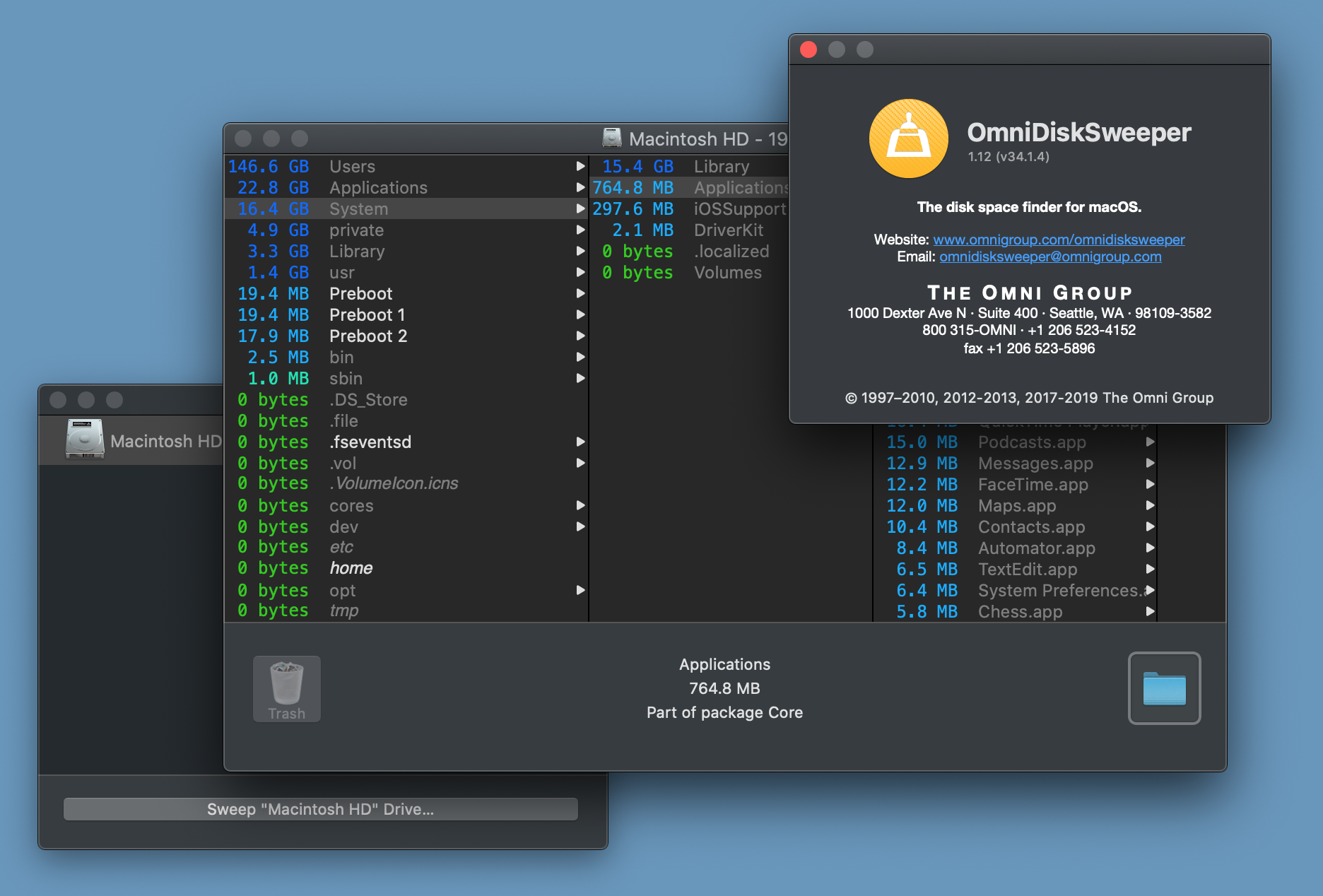
OmniDiskSweeper (free) is a combination of simplicity and functionality. It presents your files in a straightforward list sorted by size.
Pros:
- Clean, simple interface
- Shows file sizes and modification dates
- Can delete directly from the app
Cons:
- No visualization options
- Slower scanning than some alternatives (in my experience)
- Basic feature set
Conclusion
There's no single "best" tool - it depends on your workflow and preferences. I personally use ncdu for. The important thing is to use something rather than blindly deleting files or living with "disk full" warnings. Especially because most of these options are free 😄